Solution-Deployment
ServiceNow Environment Configuration
Prerequisites
This guide assumes the following configuration has already been completed
. ccx-servicenow cloudformation has been deployed in your aws account
. You are using the Next Experience UI ServiceNow UI
Install Openframe Plugin
1. Log into your ServiceNow instance as Administrator
2. From the All menu search for 'Plugins'
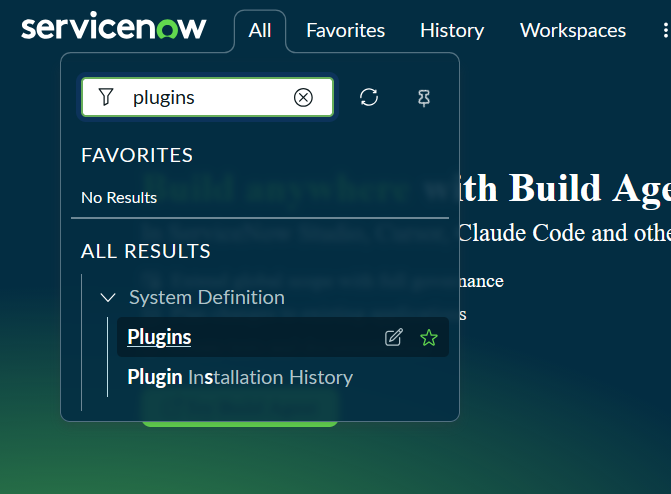
3. In the plugins search bar, search for openframe
4. Open the Openframe plugin page and select install
Configure Openframe Plugin
1. From the All menu search for 'openframe' - select Configurations
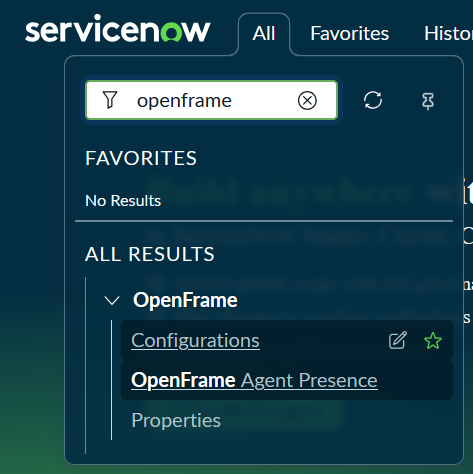
2. Select New

3. On the Openframe configuration page:
-Provide a Name - this is what the softphone name will display as.
-Ensure 'Active' is ticked'
-Provide Width and Height - the defaults are 400 Wide and 522 High
-Select the User Groups who should have access to the softphone
-Set the URL to the amplify url that was provided to you in an email after you installed the cloudformations.
Whitelist Softphone
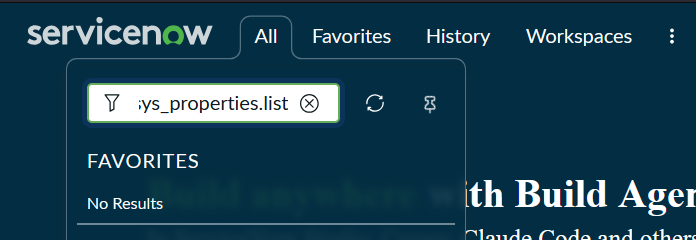
1. From the All menu enter sys_properties.list into the search bar and hit enter
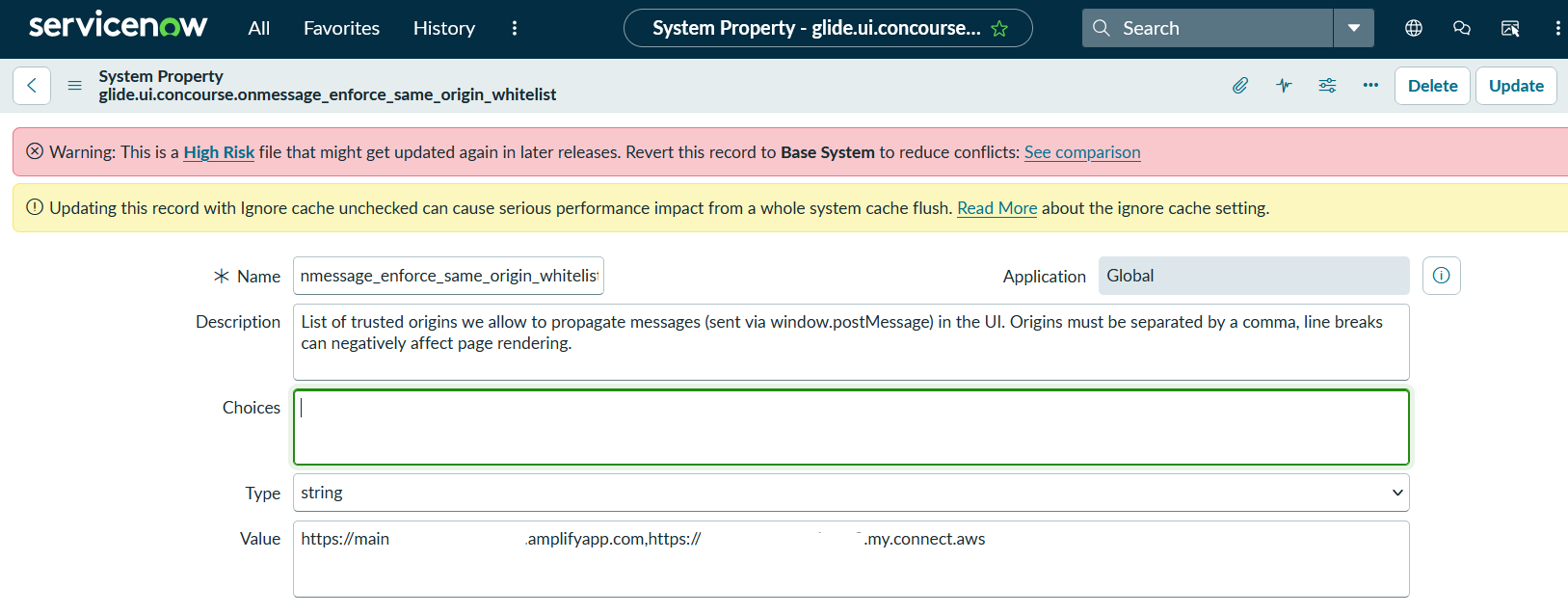
2. In the System Properties search for glide.ui.concourse.onmessage_enforce_same_origin_whitelist

3. In the value field enter the amplify url provided in your setup email, and your Amazon Connect instance url
Create API User
Create a user in ServiceNow that has access to the tables you want to be able to lookup and enable screenpops.
Note the Username and Password as this will be required in the AWS Console Config setup
Enable Click to Call
1. From the All menu search for decorators and select Field Decorators
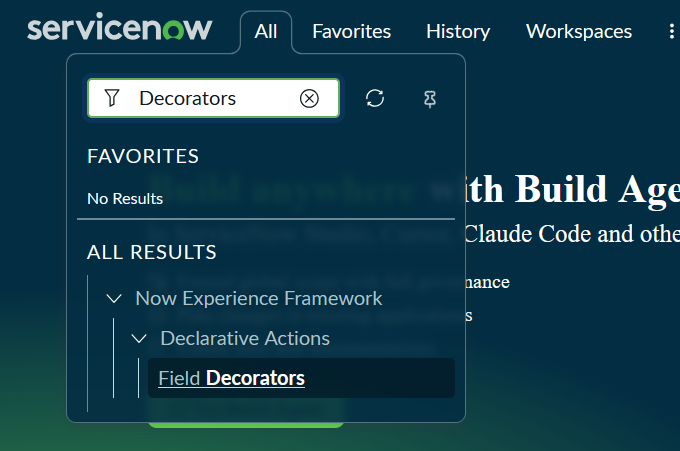
2. Create a new decorator

3. Provide the following field values to the new Decorator and save.
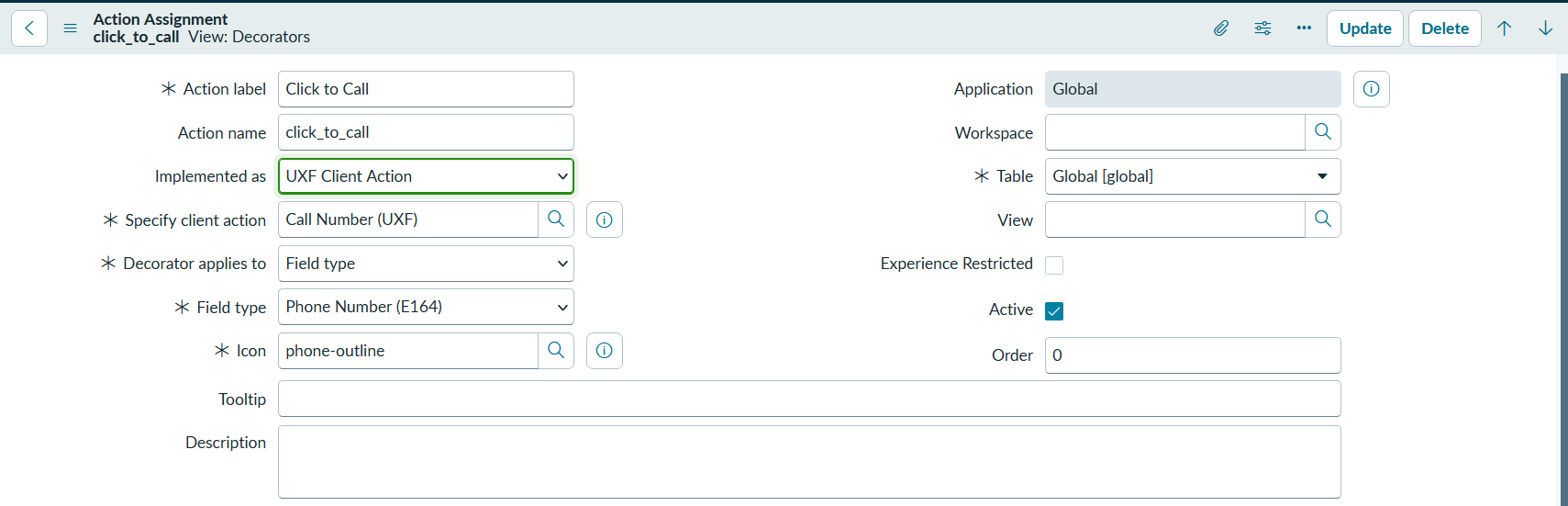
AWS Console Config
Update Parameter Store Values
1. From AWS Console go to 'Parameter Store'
2. The will be a parameter named /ccx-<your servicenow domain>/servicenow.cti/default/service_account_user
3. Edit this parameter and update Value field with the username of the API user you created in ServiceNow earlier. Save changes
4. There will be another parameter named /ccx-<your servicenow domain>/servicenow.cti/default/service_account_password
5. Edit this parameter and update Value field with the password of the API user you created in ServiceNow earlier. Save changes
Lambda Variables
1. From AWS Console go to 'Lambda' and search for ccx-snContactLensSummary
2. On this lambda go to the Configuration tab
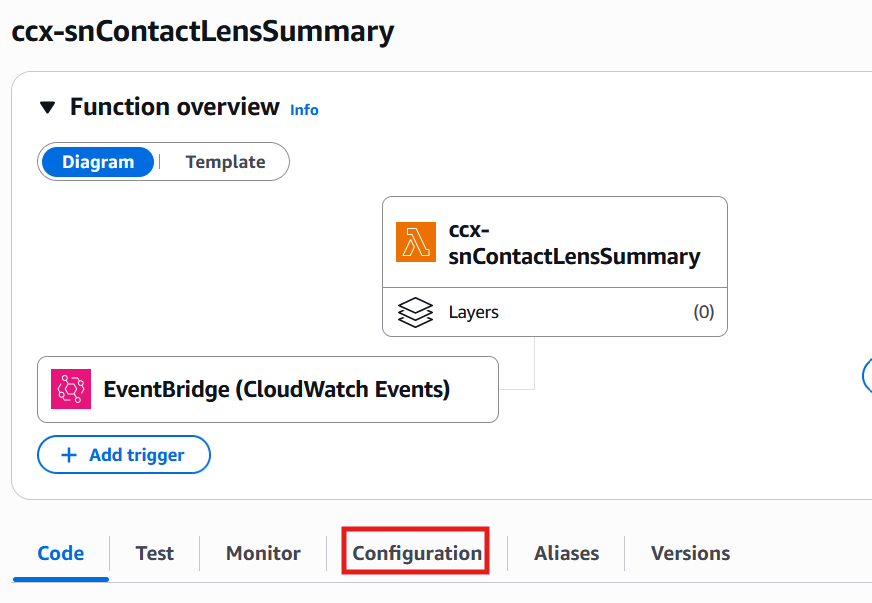
3. Update the snAttribute value to match the user-defined attribute attached to the ServiceNow Interaction attributes where you want the call summary to be added.